Assets are the fundamental elements that turn a static building model into a dynamic facility management tool.
What is an asset in ioFM?
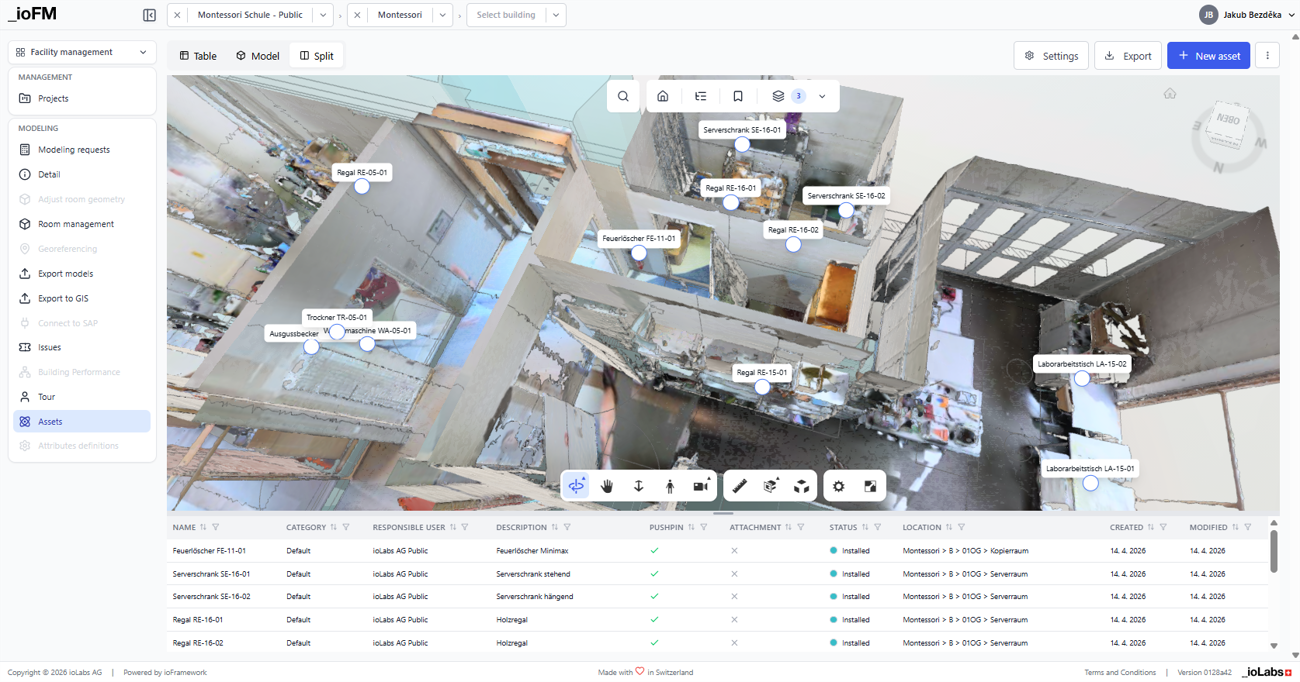
In ioFM, an asset is any physical object in a building that needs tracking, maintenance, or management across its lifecycle — HVAC systems, elevators, and fire safety installations, as well as furniture, and any other items facility managers need to monitor. Every asset is tied to its physical location in the building model, creating a direct link between digital information and real-world objects. Each asset carries metadata such as manufacturer information, installation dates, and warranty details, alongside its spatial placement and attachments. Unlike asset registers kept in spreadsheets or standalone databases, ioFM assets live inside the building model with its integrated point cloud. When you select an asset, you immediately see where it is located, which space it belongs to, and how it relates to other building systems and components.
Creating assets
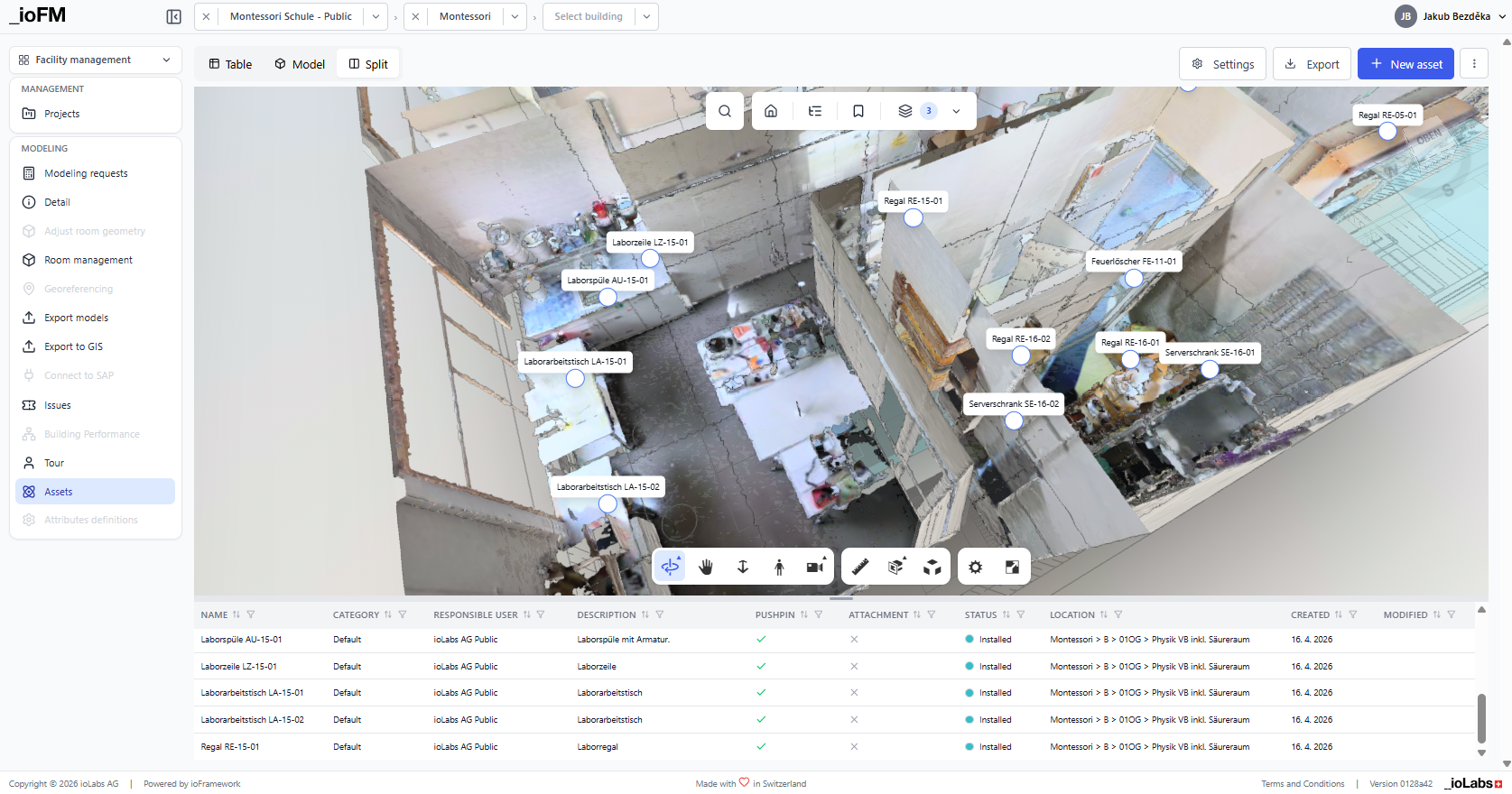
Assets can be created in two ways: as list items that are later assigned to specific locations, or directly within the model by placing a pushpin at the exact position where the asset sits. You begin by selecting a category that best describes the asset — lighting, furniture, HVAC equipment, and so on. Each category comes with its own statuses and attributes tailored to that type: a light may have wattage and light temperature, while furniture might include material and dimensions.
Next, you assign the asset to a location through the site → building → floor → room hierarchy, ensuring every asset is properly linked to its physical place within the facility. If a point cloud is available for the selected room, you can place a pushpin at the precise position of the asset. This creates an exact spatial link: later, clicking the pushpin opens all information about that asset, or you can search for an asset and instantly see where it is positioned in the space.
Asset attachements and export of assets
Any asset can hold attachments in any file format — inspection protocols, condition photographs, warranty certificates, user manuals, or maintenance reports. Images and PDFs can be viewed directly in ioFM, keeping all relevant information about an asset in one place, with no need to search through separate folders or systems.
The Asset Export function lets you download the complete asset register of the current project as a structured spreadsheet — ready for use in external tools, reporting, or data analysis.
Managing assets through an AI agent
ioFM also uses an AI agent and MCP server integration to make asset management faster and easier. In a workflow, the agent first lists the existing assets, then creates new ones from a simple screenshot of an asset table. Each asset can then be linked directly to its location in the 3D scan with a pushpin. If something needs correcting, updates are made through the chat — even across multiple assets at once. The result: your assets are created, linked to the 3D model, and managed through a single, streamlined conversation.
Ready to learn more about ioFM? Continue with the links below. Watch our tutorials on YouTube, or book a demo and let us show you how ioFM can enrich your FM workflow — from creating a Minimal BIM model out of your existing plans to using that model as the foundation for your FM operations directly in the browser, without investing in expensive specialized software.